
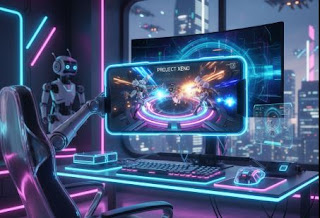
Are you tired of upgrading your PC every two years? Do you want to play the latest High end pc game on your old laptop or even a tablet? The good news is that with a little technical know-how, you can transform Google Cloud Platform (GCP) into your own powerful, high-end, pay-as-you-go cloud gaming PC.

Forget expensive, fixed-monthly subscription services. This guide will walk you through the DIY process of setting up a Virtual Machine (VM) with a powerful GPU on Google Cloud, ensuring you get a low-latency, high-performance gaming experience.
Why Choose Google Cloud for DIY Gaming?
While services like NVIDIA GeForce NOW offer great convenience, setting up your own rig on Google Cloud offers three major benefits:
-
Full Control: You install your own operating system (Windows), use your own game launchers (Steam, Epic, GOG), and install any game you own—no library restrictions.
-
Unmatched Power: You can select cutting-edge GPUs and CPUs (like the NVIDIA T4 or P4) that are often more powerful than those found in consumer-focused cloud gaming tiers.
-
Pay-Per-Use: You only pay for the VM when it is running.
For casual gamers, this can be far more cost-effective than a fixed monthly subscription.
However, be warned: this process is more advanced and requires continuous attention to managing your cloud resources and costs.
The 5-Step Setup: Turning GCP into a Gaming PC
The entire process involves two main components: The GCP Gaming Server (VM) and The Streaming Client (Parsec/Moonlight).
Step 1: Create and Configure Your Google Cloud Project
Before you start, you must have a Google Cloud account and an active billing method linked to a project.
-
Create a New Project: From the GCP Console, click the project selector drop-down and create a new project (e.g., “HighEndGamingRig”).
-
Enable Compute Engine API: Navigate to Compute Engine in the navigation menu.
This will automatically enable the necessary API for creating virtual machines. -
Request a GPU Quota: This is the most crucial step. By default, you may not have permission to use a high-end GPU.
-
Go to IAM & Admin > Quotas.
-
Filter by Service: Compute Engine API and Metric: NVIDIA T4 GPUs (or P4).
-
Select the region closest to you (for lowest latency).
-
Click Edit Quotas and request a quota of 1.
Google will review and approve this (it can take minutes to a couple of days).
-
Step 2: Launch Your High-Performance Virtual Machine (VM)
Once your GPU quota is approved, you can build your server.
| Gaming-Optimized VM Configuration (Recommendation) | Value/Setting |
| Region | Closest to your physical location (e.g., us-central1, europe-west4) |
| Machine Family | N2 or N1 for balance (or C2/C2D for compute-intensive) |
| Machine Type | n1-standard-4 (4 vCPUs, 15 GB memory) – Start here and upgrade later if needed. |
| GPU Accelerator | NVIDIA Tesla T4 (1 GPU) – Best balance of performance and cost. |
| Boot Disk | Windows Server 2022 Datacenter (Windows is required for gaming) |
| Disk Size | 100 GB SSD Persistent Disk (SSD is essential for fast game loading) |
| Firewall | Check Allow HTTP traffic and Allow HTTPS traffic. |
Pro Tip for Lower Latency: Choosing a region closest to you is the single most important factor for reducing latency.
Lower latency = better gaming experience.
Step 3: Install NVIDIA Drivers and a Streaming Client
After the VM is running, you need to connect, install drivers, and set up your streaming software.
-
Connect via RDP: In the VM Instances list, click the RDP button next to your new VM and set a Windows username and password. Use a standard RDP client (built into Windows, or an app for Mac/Linux) to log in.
-
Install GPU Driver: Once inside the Windows desktop, open a browser and download the latest NVIDIA Quadro or Tesla driver for Windows Server. You must install the driver to activate the GPU.
-
Install Parsec: Download and install the Parsec streaming client.
Parsec is the industry standard for low-latency cloud gaming due to its high-quality video compression and low-input lag. You will set Parsec to Auto-Start so you can connect to the VM without using RDP next time.
Step 4: Install Your Games and Launchers
Your VM is now a high-powered Windows PC.
-
Install Launchers: Download and install your preferred game launchers (Steam, Epic Games, Battle.net, etc.).
-
Download Games: Install your high-end games directly to the VM’s main disk. Remember, you are limited by the disk size you selected (recommended 100GB+).
Step 5: Connect and Play! (The Crucial Cost Step)
This final step involves your local device and proper server management.
-
Install Parsec Client: On your local PC, laptop, or mobile device, install the Parsec client and log in. Your GCP VM should appear as a connectable device.
-
Connect: Click Connect and enjoy your high-end gaming rig!
-
STOP The VM When Done! CRITICAL: When you are finished gaming, you must go back to the Google Cloud Console and STOP the VM instance.
You are only charged for storage when the VM is stopped, not for the expensive GPU and vCPU compute time.
FAQs for the DIY Cloud Gamer
How much does this cost?
The cost is hourly and varies greatly by region and hardware. An NVIDIA T4 VM can cost around $0.40 – $0.80 per hour of running time. This makes it an excellent value for 10-20 hours of gaming per month, but an expensive option if you forget to turn it off.
What is the best alternative to Parsec?
Moonlight (paired with NVIDIA GeForce Experience) is another popular, open-source choice that offers excellent performance, though Parsec is generally easier to set up initially on a GCP VM.
Will my latency be perfect?
No cloud gaming will perfectly replicate a local PC. However, by selecting a region geographically closest to you, you can usually achieve latency well under 40ms, which is perfectly playable for most non-competitive AAA titles. A fast, stable internet connection is vital!




Leave a Reply